How to download your holding statement from any broker (Zerodha, Groww, Angel One, Upstox & more)
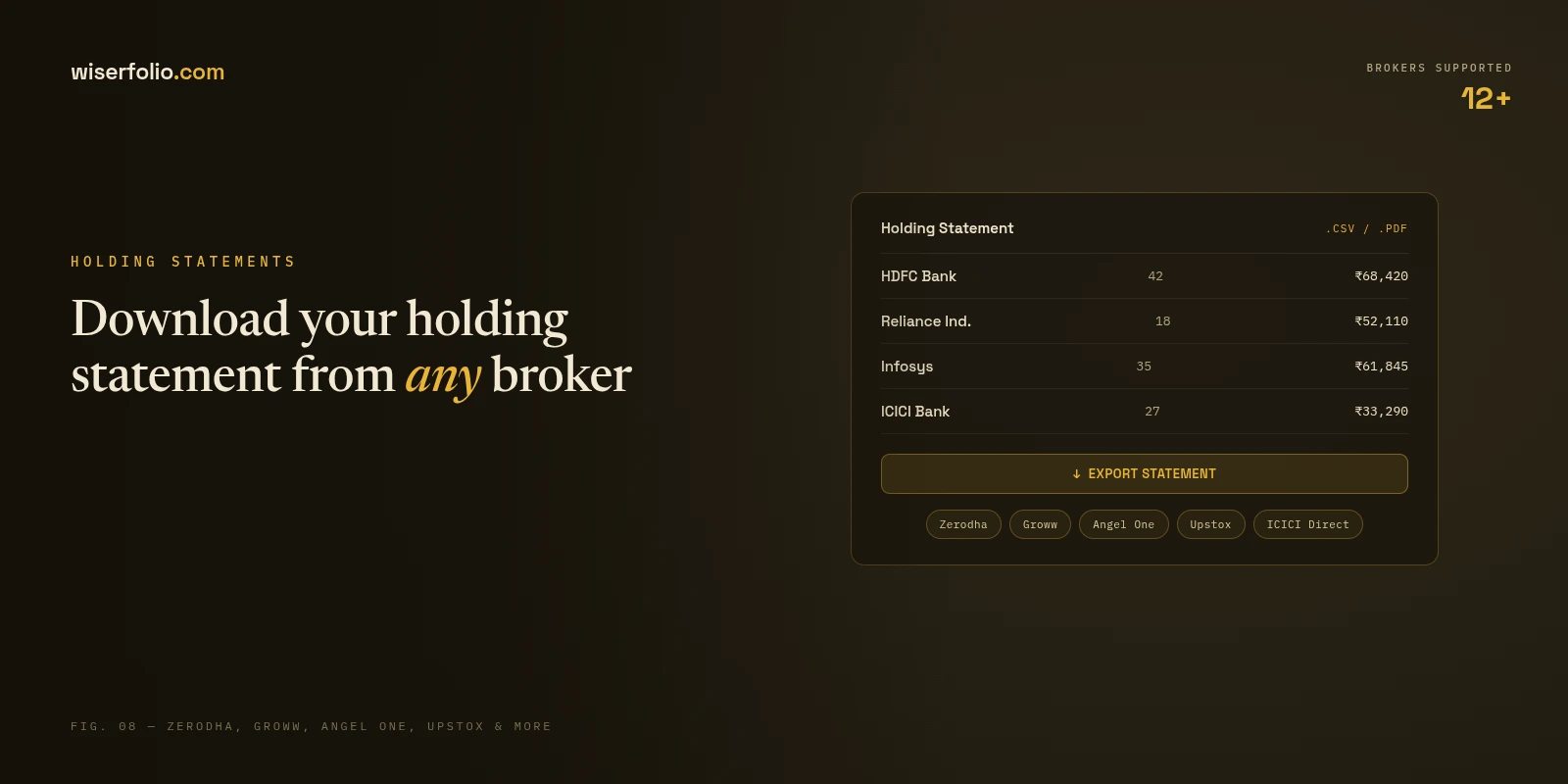
Every broker app can show you your holdings on screen. Getting them out of the app — as a file you can hand to a tax preparer, an advisor, or an analysis tool — is a different matter, and every broker hides the download in a slightly different place. This guide gives you the exact steps for each major Indian broker, plus the one detail most guides skip entirely: which statement to pick, because two documents that both say "holdings" on them can contain very different amounts of information.
Before you start: the two kinds of holding statements
Understanding this one distinction will save you a second download later.
A broker holdings report comes from your broker's own back office. Because your broker executed your trades, it knows what you paid — so this report carries your quantity, average buy price, current price, and unrealised profit or loss for every position. This is the document that unlocks real analysis: P&L, tax-loss harvesting opportunities, LTCG planning.
A depository (DP) statement or CAS comes from NSDL or CDSL, the depositories that actually hold your shares. The depository knows what you own but has no idea what you paid for it — so these statements show only quantity and current market value. They are perfectly valid documents (banks accept them, and they are the only way to see holdings across multiple brokers at once), but no analysis built on them can tell you your gains or your tax position, because the cost data simply isn't in the file.
The rule of thumb: when you have a choice, download from your broker, not the depository. Here is where each broker keeps it.
| Broker | Where the download lives | Formats | Buy price included? |
|---|---|---|---|
| Zerodha | Console → Portfolio → Holdings | CSV / XLSX | Yes |
| Groww | Profile → Reports → Holdings statement | PDF / Excel | Yes |
| Angel One | Portfolio → download icon (top right) | Excel | Yes |
| Upstox | Account → Reports → Holdings | Excel / PDF | Yes |
| HDFC Securities | Portfolio → export icon above the table | Excel / PDF | Yes |
| ICICI Direct | Portfolio → download above the valuation table | Excel / PDF | Yes |
| NSDL / CDSL CAS | Monthly email, or the depository portal | PDF (password-protected) | No — value only |
Zerodha: download your holding statement from Console
Zerodha keeps trading in Kite and everything back-office — including holdings downloads — in Console.
- Log in at console.zerodha.com with your Kite credentials. (From the Kite app: tap your profile initials, then Console.)
- Click Portfolio in the menu, then Holdings.
- You'll see the full table — quantity, average cost, current value, and unrealised P&L per stock.
- Click the small download arrow at the top right of the table and pick CSV or XLSX.
Zerodha's download is one of the richest in the industry: it includes average price, previous closing price, P&L, and even pledged-quantity columns. If your Coin mutual funds don't appear alongside your stocks, pull the MF statement separately from Coin or MFCentral.
Groww: download your holdings statement
- Open the Groww app and tap your profile icon (the "You" tab).
- Tap Reports.
- Under the stocks section, choose Holdings statement.
- Pick the date and format — Excel is the better choice for analysis, PDF for sharing — and tap Download.
The same Reports section works on the Groww website: log in, click your profile picture, then Reports. Groww's statement includes your average buy price and current value per holding.
Angel One: download your holding statement
Angel One puts the download right on the portfolio screen — no separate reports section needed. Per Angel One's own support guide:
- Log in to the Angel One app.
- Go to the Portfolio section.
- Choose the segment — Equity, Mutual Funds, or SGB.
- Tap the download button at the top right of the screen. The statement saves as an Excel sheet.
Upstox: download your holdings report
- Open the Upstox app and go to the Account tab.
- Tap Reports.
- Choose the Holdings report, select the segment and date, and download — Upstox delivers it on-screen or to your registered email depending on the report.
On the web, the same lives under your account/reports area after logging in. If a menu has moved since an app update, type "holdings" into the in-app search or help — every broker's support search finds its own report pages reliably.
HDFC Securities: export your portfolio
- Log in on the HDFC Securities website (the steps mirror in the HDFC Sky app under Reports).
- Open Portfolio — the holdings table shows quantity, average cost, market value and gain/loss.
- Use the Excel/export icon above the table to download it.
HDFC Securities' portfolio export is a genuinely detailed file — it carries value at cost alongside market value, which makes gain analysis exact.
ICICI Direct: download your portfolio valuation
- Log in to ICICI Direct.
- Go to Portfolio and open your equity holdings — ICICI Direct calls the full view the portfolio valuation.
- Use the download/Excel option above the table to save it. The file includes quantity, average cost, value at cost, market value, and unrealised gain per holding.
Kotak, Paytm Money, Dhan, 5paisa, m.Stock and other brokers
Nearly every remaining broker follows one of two patterns, and knowing them means you can find the download anywhere in under a minute:
Pattern one — on the portfolio screen: open your holdings view and look for a download or export icon at the top of the table (Angel One's approach). Pattern two — in a reports section: look under Account, Profile, or a menu named Reports / Statements for an entry called Holdings statement or Holding report (the Groww/Upstox approach). Kotak Neo, Paytm Money, Dhan, 5paisa, m.Stock, Motilal Oswal and Sharekhan all fit one of these two.
If you use a regional or traditional broker — Marwadi, Geojit, and many bank-adjacent brokers — the holdings download often lives in a separate "back office" or client portal linked from the main site, and the file it produces is sometimes an older .xls that is really a formatted web page. That's fine: it still contains your data, and good analysis tools read it. One caveat: some regional back offices export only a DP-style statement without buy prices — if yours does, ask their support for the "holdings report with average cost" or use your invested amount from memory when analyzing.
NSDL / CDSL CAS: the consolidated statement
If you have demat accounts with several brokers, the Consolidated Account Statement (CAS) is the one document showing everything in one place. NSDL and CDSL email it monthly (whenever there's been a transaction), and you can generate it on demand from CDSL's Easi portal or NSDL's IDeAS after a one-time registration with your DP ID and Client ID.
Two things to know. First, CAS PDFs are always password-protected — the password is typically your PAN in capitals (sometimes combined with your date of birth; the covering email specifies the format). To get an unlocked copy, open it with the password and then print or save it as a new PDF. Second, as covered above, CAS shows no buy prices — quantity, market price and value only. Use it for the consolidated view; use your broker's report for anything involving gains or taxes.
Which file should you actually use?
For anything analytical, the ranking is simple: CSV or Excel from your broker beats PDF from your broker beats a depository statement. Spreadsheet formats carry exact figures with no page layout to misread; the broker's file carries your cost basis; and the DP statement, while legitimate, is the thinnest of the three.
A practical tip from processing thousands of these files: the single biggest upgrade to any portfolio analysis is uploading a statement that includes your buy price. It's the difference between "here's what you own" and "here's what you've gained, what's underwater, and which tax moves are sitting unused." Two minutes in your broker's reports section buys you all three.
Once you have the file, what you do with it is the interesting part. You can open it in a spreadsheet and work through the questions yourself — here's how an analyst would read it — checking your concentration, sector spread, and dead-weight positions by hand. Or you can let software run those exact checks: upload the statement to Wiserfolio and it reads your holdings (PDF, CSV or Excel), verifies the extracted numbers against your statement's own totals, and returns the full picture — concentration risks, sector gaps, unrealised P&L, and specific tax moves — in a few minutes.
Frequently asked questions
My statement PDF is password-protected. How do I unlock it?
Open it, enter the password (for CAS it's usually your PAN in capitals — the email that delivered it states the exact format), then use Print or Save As to create a new copy. The new file is unlocked and works with tax software and analysis tools.
CSV, Excel or PDF — which should I download?
CSV or Excel whenever you'll analyze the data; the numbers arrive exact, with nothing lost to page formatting. PDF when a human needs to read it — an advisor, a bank, a loan application.
Why doesn't my statement show what I paid?
You've downloaded a depository-side statement. The depository holds your shares but never saw your trades, so it can't know your cost. Go back to your broker's app and download the holdings report from there instead.
Is a holding statement the same as a P&L statement?
No — the holding statement is a snapshot of what you own now; the P&L statement records realised gains from what you've already sold (that's the one for ITR filing). For reviewing your current portfolio, you want the holding statement.
Is it safe to upload my statement to an analysis tool?
Check two things: that the file is processed rather than stored (Wiserfolio deletes your file right after data extraction), and that the tool shows you the extracted holdings so you can verify them against your statement. A statement contains no passwords and cannot be used to transact — but it is your financial picture, so it deserves the same care as any personal document.
See what your holding statement is really telling you
Upload the statement you just downloaded and Wiserfolio shows your concentration risks, sector gaps, P&L and tax moves in a few minutes. First report free.
Analyze my portfolio free →